Why Facebook Shows More Conversions Than WooCommerce Orders (And How to Fix It)

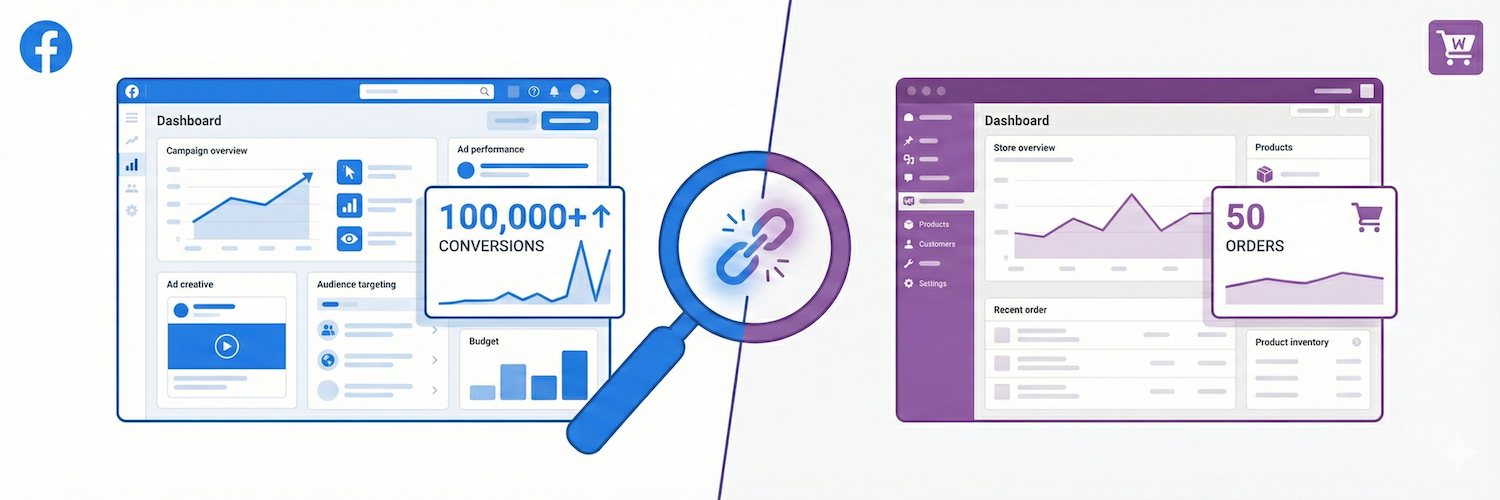
"Facebook says I had 150 conversions last week, but WooCommerce only shows 95 orders. What's going on?" This is one of the most common questions we receive in support. If you've ever stared at your Facebook Ads Manager numbers and wondered why they don't match your WooCommerce order count, you're not alone.
Here's the key insight that many advertisers miss: Facebook's conversion count is not designed to mirror your WooCommerce order count. They measure fundamentally different things. Facebook's "conversions" represent the number of conversion events it attributes to your ads, while WooCommerce orders represent actual completed transactions. Understanding why these numbers differ, and when the gap indicates a real problem, is essential for evaluating your ad performance accurately.
In this article, we'll walk through every major cause of these discrepancies, show you how to identify real tracking issues vs. expected platform behavior, and give you a clear action plan to get your numbers as close as possible.
The Two Categories of Discrepancies
Conversion discrepancies between Facebook Ads Manager and WooCommerce fall into two very different buckets, and telling them apart is the single most important diagnostic step:
- Technical tracking issues that can be fixed: duplicate pixel implementations, broken deduplication, misconfigured automatic events, or a second event sender you forgot about.
- Attribution and reporting behavior in Ads Manager that is working as designed, even though the numbers look inflated.
The tool that separates the two is Meta Events Manager. Ads Manager applies attribution modeling on top of the raw events, so its numbers can never tell you whether an event actually fired more than once. Events Manager shows the raw event stream, so it is the only source of truth for real duplication.
Ads Manager Is Not an Event Log: Attribution Inflation
Before hunting for technical bugs, understand what Ads Manager actually reports. It does not count events; it counts attributed conversions, and several mechanics can make those numbers look inflated even when your tracking is flawless:
- Attribution windows. With the default 7-day-click / 1-day-view window, a purchase that happens days after the ad interaction still gets credited. Comparing "yesterday's" Ads Manager conversions to "yesterday's" WooCommerce orders compares two different sets of orders.
- View-through credit. A customer who merely saw an ad (never clicked) and later bought through another channel still counts as a conversion under the view-through window. These conversions feel like phantom duplicates when you cross-check against orders.
- Breakdown rows can sum to more than the deduplicated total. When you break reports down by ad set, placement, or time, Meta may show the same conversion in more than one row. Summing rows yourself overstates the real total.
- Delayed and restated conversions. Meta continues to attribute and restate conversions for hours or days after the purchase. A number that "grows" after the fact (one order showing correctly at first and doubling 30 minutes later) is often attribution catching up, not a second event.
- Wrong column. The aggregate "Results" or "Conversions" column may include other events (AddToCart, Lead, form submissions) depending on the campaign setup. Always customize columns to look at "Purchases" specifically.
The decisive check: open Meta Events Manager, find the Purchase events for one specific known order (match by time and value), and count how many raw events arrived and whether they show as deduplicated. If exactly one event landed per order, your tracking is fine and everything above is Ads Manager reporting behavior. If more than one landed, continue with the technical checklist below.
Technical Issues: Fix These First
Duplicate Pixel Implementations
The most impactful technical issue is having the Meta pixel fire more than once. This commonly happens when:
- You're running multiple plugins that each inject their own Meta pixel (e.g., Pixel Manager alongside another tracking plugin like PixelYourSite, or a marketing automation plugin that includes its own Meta pixel)
- You have manual pixel code in your theme's header or footer in addition to a plugin
- A page builder or theme includes its own Meta pixel integration
How to diagnose: Open Meta Events Manager and go to Test Events. Browse your store and check if the same event (e.g., PageView, Purchase) appears multiple times for a single page load. If you see duplicate events with different event_id values, or duplicate events where some are missing an event_id entirely, you have duplicate pixel implementations.
How to fix: Choose one single source of truth for your Meta pixel (ideally Pixel Manager) and disable all other pixel implementations. Remove any manual pixel code from your theme.
Facebook Automatic Events Enabled
Meta's Events Manager has a feature called Automatic Events (sometimes called "automatic event configuration" or "codeless events") that fires events on top of whatever your pixel implementation already sends. If this is enabled, Facebook may be counting events twice.
How to fix:
- Go to Meta Events Manager
- Select your Pixel
- Go to Settings
- Find Automatic Events and turn it off
This is one of the most commonly overlooked settings and can significantly inflate your conversion numbers.
How to recognize it: the duplicate event carries an event ID in the format pmw_<16 characters>_<long number> (e.g. pmw_xq9m1b4a3uqdcc61_26495490706760077). That trailing counter is appended by Meta's own fbevents.js after it auto-detects the purchase, so the duplicate inherits the Pixel Manager's ID namespace even though the Pixel Manager did not send it. See the dedicated troubleshooting entry for the full diagnosis.
A Bug in Meta's Own Tracking Library
If automatic events are already off and you still see duplicates from a single page load, you may be hitting a known intermittent bug in Meta's fbevents.js library itself. There is a one-minute test: load the order confirmation page with ?fbevents-version=2.9.84 appended to the URL, which makes the Pixel Manager load an older, known-good library version for that page view. If the duplicates stop, pin the older version permanently with the pmw_facebook_fbevents_script_version filter. Full steps: fbevents.js library bug.
Broken CAPI Deduplication
If you're using both the Meta browser pixel and the Conversions API (CAPI), which is the recommended setup, proper deduplication is critical. Here's why: the browser pixel sends a Purchase event from the visitor's browser, and the CAPI sends the same Purchase event from your server. If these two events don't share a matching event_id, Facebook counts them as two separate conversions for the same order.
This one issue alone can double your reported conversion count.
How to diagnose: In Meta Events Manager, look for your Purchase events and check the Deduplication status. If events show as "not deduplicated," there's a problem.
Do not use the browser received and server received columns for this. They are raw intake counts taken before deduplication, and with CAPI running correctly the server column is supposed to be the higher of the two: the plugin sends one server event per paid order, while the browser event only exists for the buyers whose browser did not block the pixel. A ratio between those columns is not evidence of double counting. See How to read Meta's browser-received and server-received event counts.
How to fix: Ensure that one plugin handles both the browser pixel and CAPI events. Pixel Manager manages both sides and automatically generates matching event_id values, so deduplication works correctly out of the box without any additional configuration. Problems arise when different tools manage each side (e.g., one plugin for the browser pixel and Stape or another tool for CAPI), because the event_id values generated independently by each tool won't match.
For a deeper dive into how CAPI deduplication works, read our article: Facebook CAPI Deduplication and Match Key Parameters.
Interested to get updates?
Sign up to our monthly newsletter today.Counting Multiple Event Types as Conversions
This might not be a "technical" issue per se, but it trips people up frequently. In Facebook Ads Manager, when you set up a campaign, you choose which events to optimize for. If you configure your campaign to count both AddToCart and Purchase as conversion events, Facebook's "Conversions" column will include both.
A single customer who adds an item to their cart and then purchases generates two "conversions" in that scenario, even though you only have one order.
How to check: In Ads Manager, look at your campaign's conversion settings. Click on the "Columns" dropdown and customize your view to show individual events (e.g., "Purchases" specifically) rather than the aggregate "Conversions" column.
Failed or Cancelled Orders
The Meta browser pixel fires on the order confirmation page. If a customer reaches that page but the payment ultimately fails or the order gets cancelled, the pixel has already fired a Purchase event. WooCommerce may not count this as a completed order, but Facebook already recorded the conversion.
Pixel Manager mitigates this by verifying order payment status before firing conversion events via CAPI, and through its built-in order duplication prevention mechanisms.
Redirect-Based Payment Gateways
Payment methods that send the customer away to a bank or payment provider and back (iDEAL, BLIK, Przelewy24, PayNow, Klarna, bank transfers, and similar) create extra page loads around the order confirmation page: the return redirect, status polling pages, the back button, or the customer re-opening the confirmation link from the order email.
This is frequently blamed for duplicates, but with the Pixel Manager it is usually not the cause. The plugin's order duplication prevention already blocks repeat fires for the same order: the free version remembers tracked order IDs in the browser (so every repeat visit in the same browser is suppressed), and the Pro version additionally stores a server-side marker on the order itself, which also covers the customer opening the confirmation link on a different device or browser later.
Where redirect gateways do cause duplicates is in combination with a second event sender that has no such guard: a purchase tag in the theme, a GTM container, or the gateway's own return page firing a pixel on every load. The pattern to look for: different payment methods duplicating at different rates (e.g. one method 3x, another 2x), which matches "one extra sender per extra page load in that method's flow" rather than a plugin re-fire, since the Pixel Manager's guard is order-scoped and would block all repeats identically.
Other Event Sources You May Have Forgotten
Events do not only come from your website. Check Events Manager for additional connections feeding the same pixel or dataset:
- Offline conversion or CSV uploads adding purchases on top of the pixel events
- Catalog / Commerce Manager integrations sending their own purchase events
- A Conversions API Gateway or a partner integration (Stape, a hosting-level integration, a previously configured connector) still sending server events in parallel with the plugin. Meta's own Conversions API Gateway is the most common of these and the easiest to miss, because it lives entirely on Meta's side and mirrors every browser event into the server channel: full diagnosis and fix
- Leftovers from a "deactivated" integration: the Meta for WooCommerce plugin, PixelYourSite, or similar tools can leave behind connected assets in Events Manager even after deactivation on the WordPress side
Interested to get updates?
Sign up to our monthly newsletter today.How to Diagnose the Gap: A Step-by-Step Checklist
Follow this checklist in order.
-
Establish the ground truth in Events Manager. Pick one known order and find its
Purchaseevents in Meta Events Manager (match by time and value). Exactly one deduplicated event per order means your tracking is correct and the gap is Ads Manager attribution behavior; stop here and re-read the attribution section above. More than one event means real duplication; continue. -
Check for duplicate pixel implementations. Use Meta Events Manager → Test Events. If you see duplicate events, remove the extra pixel source (second plugin, theme code, GTM tag, gateway page).
-
Disable Automatic Events. Meta Events Manager → Settings → Automatic Events → Off. Duplicates with event IDs like
pmw_<random>_<long number>point here. -
Verify CAPI deduplication. In Events Manager, confirm events show as "Deduplicated." If not, ensure one plugin (ideally Pixel Manager) handles both browser pixel and CAPI.
-
Audit other event sources. Offline uploads, catalog integrations, CAPI Gateways, and leftover connections from deactivated plugins all feed the same dataset.
-
Check your campaign conversion events. In Ads Manager, verify which events are being counted as conversions. Customize columns to view "Purchases (conversion)" specifically, rather than the aggregate "Results" column.
What Can You Realistically Expect?
With a properly configured setup (no duplicate pixels, automatic events disabled, CAPI properly deduplicated, and only purchase events counted as conversions) Facebook's reported purchase conversions should be lower than your total WooCommerce order count.
This is because Facebook only attributes conversions to ad interactions (clicks or views). It cannot claim credit for orders that originated from channels unrelated to your Facebook ads, such as organic search, direct traffic, or email campaigns. So the number of Facebook purchase conversions can never be as high as the orders in WooCommerce.
If Facebook is reporting more purchase conversions than your total WooCommerce orders, that's a clear signal that something is wrong on the technical side. Work through the checklist above to identify the cause.
How Pixel Manager Helps
The Pixel Manager for WooCommerce is specifically designed to address the technical causes of conversion discrepancies:
- Built-in deduplication: Pixel Manager handles both the Meta browser pixel and the Conversions API, automatically generating matching
event_idvalues for proper deduplication. No need for separate CAPI tools. - Order duplication prevention: Both cookie-based and advanced server-based mechanisms prevent the same order from being tracked twice.
- Single source of truth: By managing all your tracking pixels from one plugin, you eliminate the risk of overlapping pixel implementations.
- Payment verification: Purchase events sent via CAPI are verified against the actual order payment status, reducing false positive conversions from failed payments.
If you're currently running into conversion discrepancies, check out our troubleshooting guide for a quick-reference checklist, and our Meta configuration guide for setup instructions.

