Google Consent Settings
Google Consent Mode
Starting from version 1.35.0 the Pixel Manager supports the Google Consent Mode v2
Google Consent Mode v2 is available in both the free and the Pro version of the Pixel Manager. It is not a Pro feature. (The Google TCF Support setting further down on this page is the only Pro feature in the Google consent settings.)
Google Consent Mode allows cookieless tracking of visitor traffic and conversions. Although it is less accurate than tracking with cookies, it is much better than not tracking traffic at all (until cookie consent is given by the visitor). According to Google the Consent Mode is a GDPR compliant way to measure the traffic. Therefore, this is an ideal way to measure traffic in regions where explicit cookie consent is required by law (such as the European Union).
If tracking is configured to only be measured after explicit cookie consent approx. 80% of the data is lost. As a consequence you will lack the proper data to analyze and optimize campaigns. It also has a severe negative impact on Google Ads smart bidding. The Google Consent Mode allows cookieless tracking of more than 70% of the traffic and all conversions. This puts performance marketers and shop owners into a much better position if their goal is to maximize profitable revenue.
Enable Google Consent Mode
-
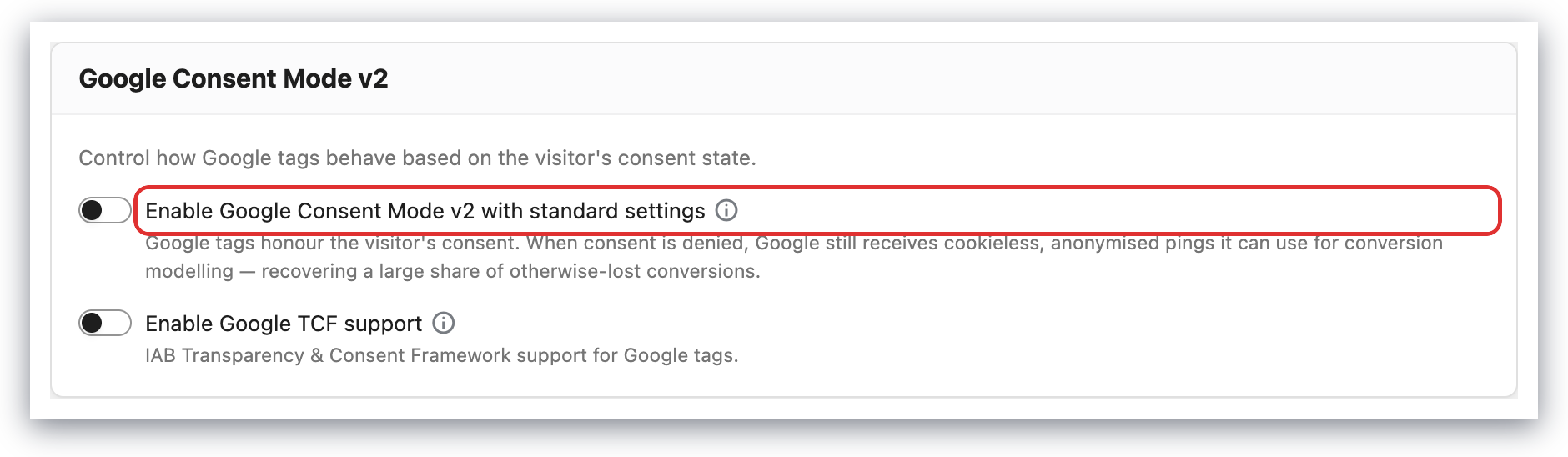
In the Pixel Manager, open Consent → Google Consent Mode v2.
-
Turn on Enable Google Consent Mode v2 with standard settings.
-
Save the settings.
Default Settings
When enabled the default settings will be set to the maximum data privacy settings for all regions. Additional code allows consent management tools (cookie banners) to override settings according to visitor choice, and cookieless conversion tracking for Google Ads.
When the Google Consent Mode is enabled in explicit consent mode the plugin outputs the following default consent settings for the restricted regions you have specified:
gtag('consent', 'default', {
    'analytics_storage': 'denied',
    'ad_storage': 'denied',
    'ad_user_data': 'denied',
    'ad_personalization': 'denied',
    'functionality_storage': 'denied',
    'personalization_storage': 'denied',
    'security_storage': 'granted',
    'wait_for_update': 500
});

gtag('set', 'ads_data_redaction', false);
gtag('set', 'url_passthrough', true);
Head over to the Google consent mode information here or here and the developer documentation here to learn more.
url_passthrough
From version 1.11.5
The url_passthrough default setting true increases the tracking accuracy. But, as long as cookies have not been accepted by a visitor, it also creates URLs with very long tracking parameters while the visitor is browsing the shop. Not every shop owner likes this. It might lead to some confusion, usually more for the shop owner than for the visitor.
When url_passthrough can break site functionality
In rare cases, url_passthrough can break things on the front end when consent is denied. The feature appends a _gl=… parameter to outbound URLs (link clicks and form action URLs). Most themes and plugins handle this without issue, but some ship custom click or form handlers that don't tolerate the modified URL. The result is broken navigation, broken form submissions (the most visible case is add-to-cart silently failing), or broken AJAX flows. This only affects visitors who have denied consent. When consent is granted, _gl is not appended, so everything works normally and the issue stays hidden.
If a site behavior changes only between granted and denied consent, url_passthrough is a likely suspect. See the troubleshooting entry Add-to-cart (or other forms) silently fails when consent is denied for the diagnostic test and fix.
Disabling url_passthrough
The following filter turns url_passthrough off:
add_filter('pmw_google_url_passthrough', '__return_false');
There is a trade-off: tracking accuracy for consent-denied visitors decreases, and cross-domain session stitching is lost. For single-domain stores the practical impact is minimal. Weigh that against the alternative of a feature on your site silently failing for consent-denied visitors. Disabling url_passthrough is a legitimate workaround when a theme or plugin breaks on the appended _gl parameter and cannot be fixed at the source.
Troubleshooting Consent Mode features
The Pixel Manager's Google Consent Mode features (url_passthrough, ads_data_redaction, wait_for_update) are pass-throughs to Google's gtag library. Behavior caused by these features is upstream Google behavior, not a Pixel Manager bug. The Pixel Manager is the visible surface, however, so issues will typically be reported here first.
Heuristic: if a site behavior changes only between granted and denied consent, the cause is almost always one of these consent-mode parameters.
Disable knobs:
-
url_passthrough: disable with thepmw_google_url_passthroughfilter (see above). Most common cause of denied-consent-only breakage. -
ads_data_redaction: adjust with thepmw_google_ads_data_redactionfilter. Default isfalse. Set totrueonly if you understand the impact on conversion measurement.add_filter('pmw_google_ads_data_redaction', '__return_true'); -
wait_for_update: fixed at 500ms in the consent default block. This is the timeoutgtagwaits for a CMP to callgtag('consent', 'update', …)before proceeding with the default (denied) state. If a CMP loads slowly enough that consent updates arrive after the wait, beacons may be sent under the default state. Address this by ensuring the CMP loads early in the page, not by tuning this value.
When opening a support ticket about a behavior that changes between granted and denied consent, please indicate whether you have already tested with url_passthrough disabled. That single test resolves most reports.
Google TCF Support
Google TCF Support is a Pro feature. This applies only to the TCF setting described in this section, not to Google Consent Mode v2, which is available in the free version as well. Get the Pro version here.
If you are showing ads on your website, you need to comply with the IAB Europe Transparency & Consent Framework. The framework is designed to help all parties in the digital advertising chain ensure that they comply with the EU’s General Data Protection Regulation (GDPR) and ePrivacy Directive when processing personal data or accessing and/or storing information on a user’s device, such as cookies, advertising identifiers, device identifiers and other tracking technologies.
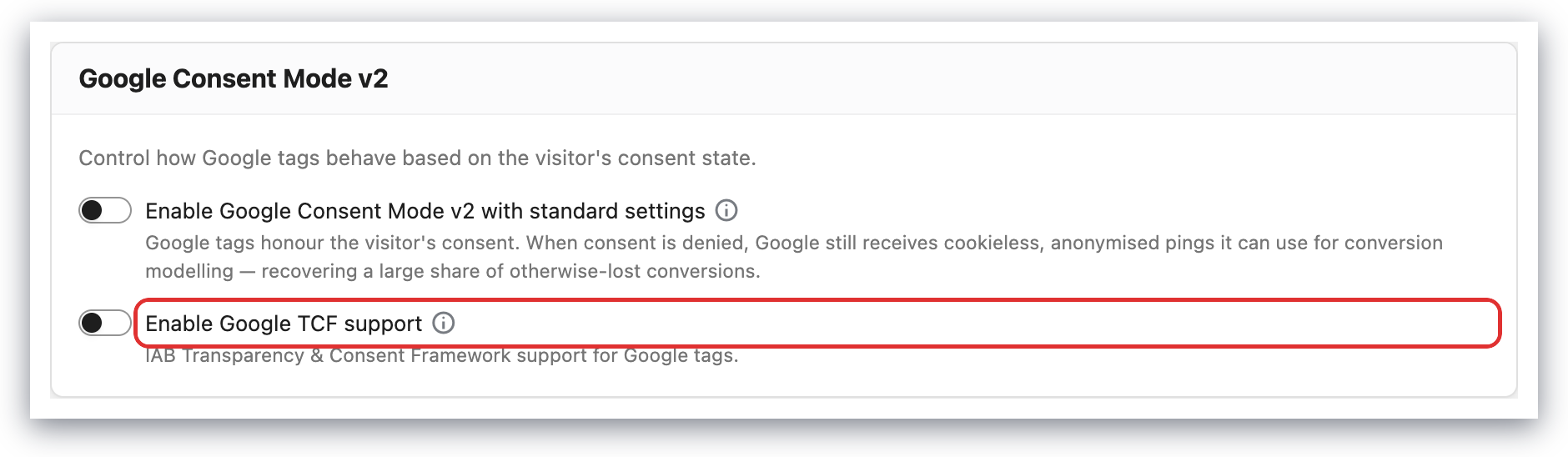
The Pixel Manager allows you to configure the Google Consent Mode to be compatible with the IAB Europe Transparency & Consent Framework by enabling the Google TCF Support.
- In the Pixel Manager, open Consent → Google Consent Mode v2
- Turn on Enable Google TCF support