Diagnostics
Payment Gateway Tracking Accuracy Report
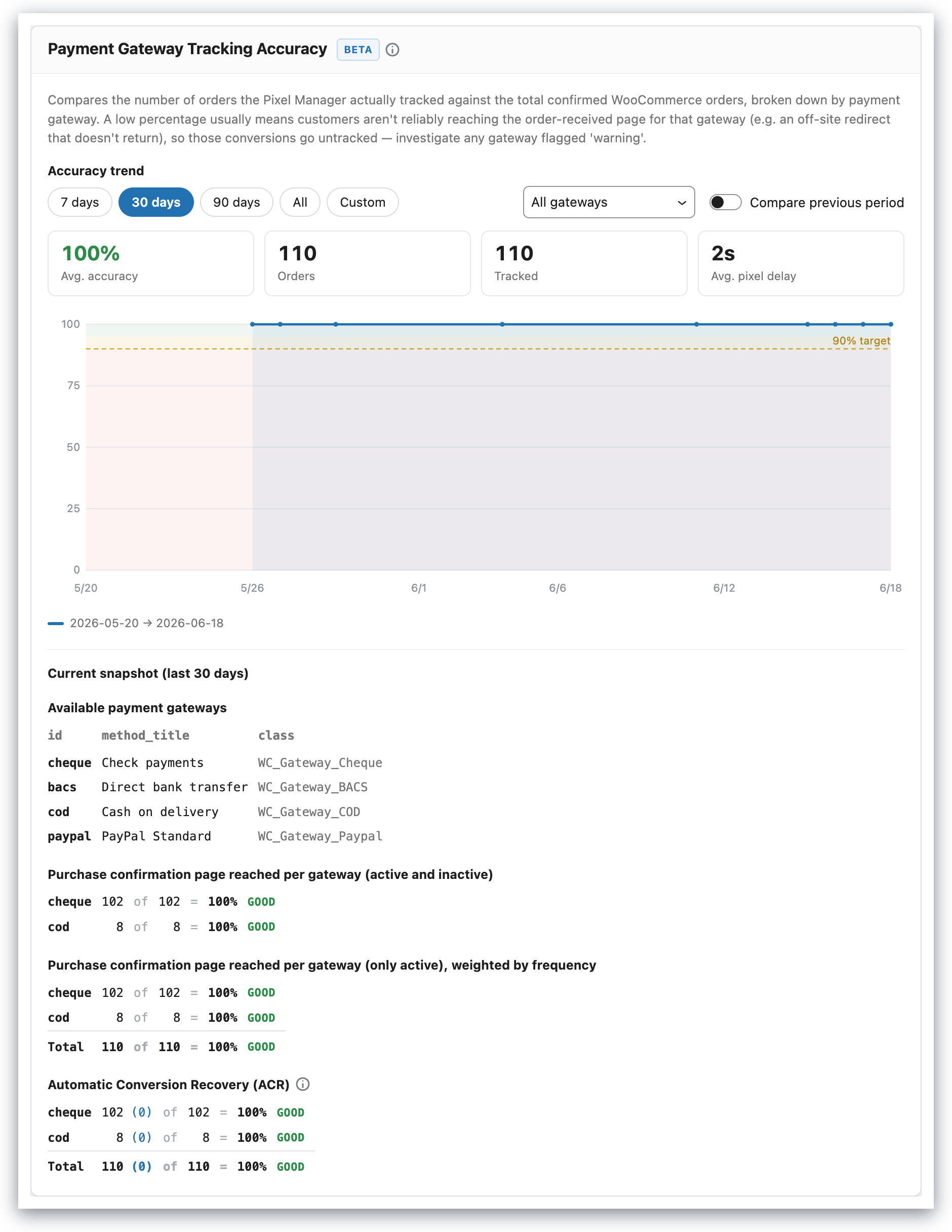
The Payment Gateway Accuracy Report shows how often customers reach the purchase confirmation page when buying a product.
Why is that important?
Most tracking pixels use browser-based tracking libraries. So if your customers don't visit the purchase confirmation page with their browser, then the libraries can't load and thus can't send the conversions back to the analysis (or ads) platforms.
Especially for paid ads platforms, it is crucial that 100% of all conversions are being tracked properly because all bidding and budget decisions depend on how much revenue was tracked.
One would think that on a regular WooCommerce shop 100% of the customers reach the purchase confirmation page. But that, unfortunately, is not the case. Most shops in fact don't track 100%. The numbers go down as low as below 50% of tracked purchases. And the biggest problem is that shop owners and campaign managers usually don't get suspicious about the payment gateways and purchase confirmation pages as long as some conversions are being tracked. However, tracking only 70%, or 80% instead of 95% to 100% can make a huge difference on campaign performance and revenue.
That's why we've implemented this report in the Pixel Manager to help you to better understand if there is a problem with tracking accuracy.
Do payment gateway tracking accuracy issues affect all tracking pixels?
Browser-based tracking is affected for every pixel: a conversion that relies on the purchase confirmation page is lost when the customer never reaches it.
Server-side tracking is not affected. In the Pro version, the Pixel Manager sends the purchase from your server as soon as the order is paid, whether or not the customer sees the confirmation page. It does that for Google Analytics 4 (Measurement Protocol), Google Ads (server-side conversion upload), Meta, TikTok, Pinterest, Snapchat, Reddit, OpenAI, Nextdoor, Microsoft Advertising, Spotify, AppLovin, Mixpanel and Klaviyo. Each one needs its server-side API set up in the platform's settings in the Pixel Manager.
For browser conversions that were still missed, the Pro version also has Automatic Conversion Recovery, which recovers them on the customer's next visit to your shop.
Typical causes
In most cases, the tracking accuracy drops because a payment gateway doesn't redirect properly to the purchase confirmation page. This is why this diagnostics report is called the Payment Gateway Tracking Accuracy Report. But there are other possible causes why customers don't reach the purchase confirmation page. The following list shows some causes that we have come across so far:
-
Off-site payment gateways: The customer gets redirected to an off-site payment page, and after the purchase, the customer doesn't get redirected back to the purchase confirmation page. This can happen when the redirect is not set up correctly, or when the customer interrupts the redirect.
-
Custom purchase confirmation page without proper hooks: The shop developer has set up a custom purchase confirmation page but isn't using the proper WooCommerce hooks to do so.
-
Incompatible plugins: The shop developer has used an incompatible plugin to customize the purchase confirmation page, which doesn't use the proper WooCommerce hooks.
-
Slow page loading: The shop is loading the purchase confirmation page too slowly and customers exit before they reach the purchase confirmation page.
"Typically on the submission, I see most often it's 3rd party integrations syncing order data. Check the webhooks and what plugins may be meant to sync order data. often it's something like a Klaviyo or Mailchimp-type plugin syncing order data into their mailing lists. I'd put money it's API calls of some sort, 90%+ of the time, that's what I see." (Patrick Garman)
-
Redirects away from the purchase confirmation page: Anything that causes a redirect away from the purchase confirmation page (e.g., custom thank you page redirects, plugin redirects, or theme-based redirects) will prevent tracking pixels from firing properly. This includes intentional redirects added by shop managers or developers.
-
Misconfigured caching: When page caching or CDN caching is badly configured, it can serve stale or incorrect versions of the purchase confirmation page, preventing tracking scripts from executing properly.
-
JavaScript errors: Critical JavaScript errors on the purchase confirmation page can prevent the page from fully loading or stop tracking scripts from executing.
-
Ad blockers and privacy extensions: Some aggressive ad blockers or privacy browser extensions may block tracking scripts entirely. However, as of this writing, the impact is typically only a few percent of overall shop traffic.
Typical accuracy
On reliable servers with high-quality payment gateways, we've seen tracking accuracy to be next to 100%. From our experience, tracking accuracy above 95% is easily achievable. So this is what you should aim for. Everything below should be considered a problem worth to be fixed.
In the tracking accuracy report, you will see a weighted total. If this is below 95% you should take action. The list of gateways is sorted by weight. Start from the top and start fixing those which are below 95%.
One payment gateway that usually gets tracking accuracy above 95% is the Stripe payment gateway. For us, this is the benchmark so far. But, we understand that it is not always possible to use this one. So make sure to monitor the Diagnostics tab in the Pixel Manager to find out if your payment gateways are deteriorating tracking accuracy.
Active and inactive gateways
The report has two views. The first lists every payment gateway found on recent orders, active and inactive. The second, weighted by how many orders each gateway received, only counts the active gateways, and its total is the number to watch.
A gateway is active when either of these is true:
- It is enabled and available in WooCommerce → Settings → Payments.
- Orders received in the last 30 days were stored with its payment method ID. This keeps gateways in the report whose plugin writes a different ID to the order than the enabled gateway has, for example a legacy Stripe ID such as
stripe_ccwhile the current Stripe gateway processes the payment.
Everything else is inactive: gateways you have switched off and that no longer receive orders. They still appear in the first view, so older orders are accounted for, but they don't affect the weighted total.
The gateway only matters for this report. Automatic Conversion Recovery (Pro) and the Pixel Manager's protection against counting an order twice work the same for every order, whichever gateway it was paid with.
What can you do to fix the tracking accuracy?
Depending on what's causing the deteriorated tracking accuracy, you have to do one or several of the following solutions:
- If you are using an off-site payment gateway: Off-site payment gateways almost always create trouble. Switch to an on-site payment gateway.
- If, for some reason, you have to use an off-site payment gateway: Try to fix configuration issues with that off-site payment gateway. Or, try out different off-site payment gateways.
- Try using a different payment gateway. Make 100% sure that you've set it up correctly. Test it.
- Try to test the checkout under different conditions (desktop, mobile, different browsers, different products).
- Listen to your customers. If you are lucky, customers will give you feedback that they could not visit the purchase confirmation page. Act on it and try to locate the issue.
- Set up server-side tracking (Pro) for every platform that supports it. Those platforms then receive the purchase even when the confirmation page never loads. See above.
- Monitor the Diagnostics tab in the Pixel Manager frequently (once a week or once a month) to ensure everything is in the green.
Click ID Capture Quality
The debug report contains a Click ID Capture Quality section that shows how often the Pixel Manager could capture the ad click ID of the visit that led to an order, which source delivered it, and how often it filled in for a browser pixel that never fired.
Read Click ID Capture for what the report measures, how to read each line, and what to check when the rate is low.
Order List Info
The order list info displays information related to the Pixel Manager on the order list page.
You can enable it in the Pixel Manager under General → Order configuration via the Show tracking info in the order list toggle.
Pixel Manager Column: The Pixel Manager column shows for which orders the conversion pixels have fired (green checkmark) or not (red circle). If you see two dots, then that order is not included in the analysis because the order creation was not triggered by the customer himself. That can happen when a shop manager creates an order for a customer.
Pixel Manager Filter: The Pixel Manager filter shows all orders of the past 30 days where the conversion pixels haven't fired. It can help to detect a pattern and determine the cause and why the conversion pixels haven't fired.
Find out more about possible reasons why the conversion pixels didn't fire in this support article.

What the green checkmark proves, and what it does not
This distinction matters as soon as you compare the column with the numbers in an ads platform, so it is worth being precise about it.
The checkmark is not written while the confirmation page is being generated. It is written by a small beacon that the customer's own browser sends back to your shop after the Pixel Manager has run the purchase event. A green checkmark therefore proves all of the following:
- A real browser loaded the purchase confirmation page.
- The Pixel Manager's scripts loaded and executed on it.
- The purchase event was dispatched to the configured destinations.
That already rules out the most common causes of missing conversions: a payment gateway whose customers never return to the confirmation page, an optimization plugin that delays, defers or strips the Pixel Manager's scripts, script lazy loading that waits for an interaction that never comes, and a broken or stale script bundle.
What the checkmark does not prove:
- That every destination sent something. A pixel held back by missing marketing consent, by an excluded user role, or by order duplication prevention on a revisited confirmation page, still leaves the checkmark green. The event ran; that destination declined to send.
- That the request reached the platform. Ad blockers, privacy extensions, strict browsers and network level filters block requests to advertising domains while leaving the Pixel Manager's own first-party beacon untouched. From the shop's point of view those orders look identical to the successful ones.
- That the platform accepted and attributed it. The platform still needs a click ID, a click inside its conversion window, and its own attribution model has to give your account credit. See The number of conversions counted in Google Ads is less than what's actually reported in my shop.
So if an ads platform reports fewer conversions than you have orders with a green checkmark, the checkmark has already narrowed the search for you. Stop looking for the cause in your shop's page delivery and look at the transport and the platform instead: competing tags writing to the same conversion ID, blocked requests, and attribution. The order's own click ID is the next thing to check, see Reading the click ID of a single order.
A red circle is the opposite signal and a much simpler one: the beacon never arrived, so the purchase event never ran in a browser on that order's confirmation page.

